Monitor in-progress digital interactions
You can monitor in-progress digital interactions and, for messaging interactions, take over an active conversation when necessary.
- Monitoring allows you to inspect an interaction between the agent and the customer. For messaging interactions, supervisors with the appropriate permissions can take over an active conversation while monitoring. The customer and agent are not aware that monitoring is taking place. If a supervisor takes over a messaging interaction, Genesys Cloud notifies the agent that the takeover occurred.
The monitoring features are available on the interaction’s detail page. To access the details page, click an in-progress interaction from any of the following views:
Available channels:
- Web messaging
- Messaging (third party and API)
- SMS
Monitor an interaction
This section gives a step-by-step overview of how to monitor an interaction as a supervisor. For active messaging interactions, supervisors with the appropriate permissions can also take over the conversation while monitoring.
- Genesys Cloud does not notify the agent or customer that you are monitoring them.
- While monitoring, you can see every contextual panel that the agent sees. This feature enables you to inspect every detail about the conversation. For active messaging interactions, supervisors with the appropriate permissions can take over the conversation and become the active participant handling the customer interaction.
- To monitor an interaction, set your status to Available.
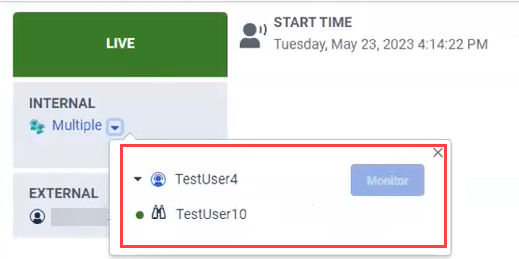
- Only one supervisor at a time can monitor a conversation. If another supervisor wants to monitor an already monitored interaction, Genesys Cloud grays out the Monitor button and displays the supervisor who is monitoring the selected interaction.
Start to monitor an interaction
- You can start to monitor an ongoing interaction in several ways.
Through
Go to Performance > Interactions Click Menu > Analytics > Analytics Workspace. Click the tab, and select Interactions. and select the binocular icon (
 ) next to the name of the agent that you want to monitor.
Through
Go to Performance > Queue activity. Click Menu > Analytics > Analytics Workspace. Click the tab, and select Queue Activity. In the Interacting section, you can see the currently in-progress interactions. Select the binocular icon (
) next to the name of the agent that you want to monitor.Go to Performance > Queue activity. Click Menu > Analytics > Analytics Workspace. Click the tab, and select Queue Activity. On the right side of the screen, from the list of On Queue agents, click the + icon next to the name of the agent click the name of the agent to expand the details of the interaction and click View Details.
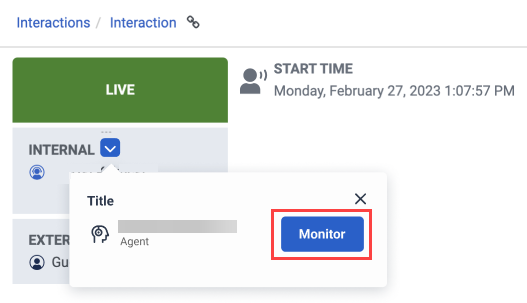
- On the opened Interaction screen, select Monitor from the list next to the agent name. If there are multiple agents, first select the agent to monitor from the Multiple list.
During monitoring an interaction
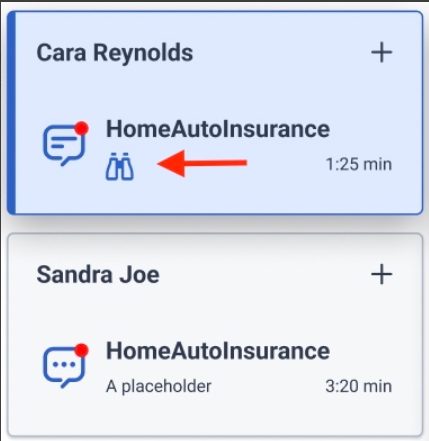
- When Genesys Cloud adds you to the interaction, a new interaction appears in your interaction panel. To view the monitored conversation, click the new interaction. For active messaging interactions, you can take over the conversation if you have the required permissions.
- A binocular icon on the interaction panel shows which interaction that you are monitoring.
Stop monitoring an interaction
Stop monitoring an interaction in one of the following ways:
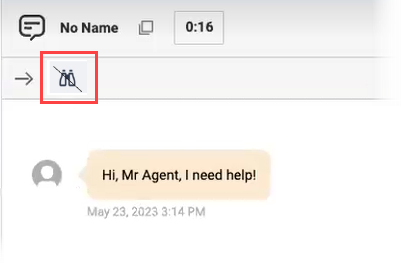
| Within the interaction | Click the binocular icon in the upper left corner of the interaction that you are monitoring. |
Through Interaction details | Go to Performance > Interactions, and select the agent you are monitoring. Under Internal, select Stop Monitoring next to the name of the agent. |
After the end of the monitoring
You can inspect the interaction’s metrics on the Interaction Detail tab. The binocular icon shows which supervisors participated in the interaction via monitoring.
Click the image to enlarge.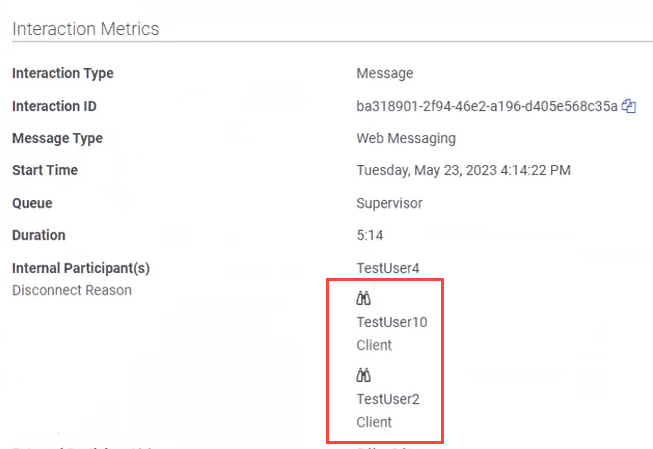
In the interaction’s Timeline tab, you can inspect the timeline when the supervisor monitored an interaction.
Click the image to enlarge.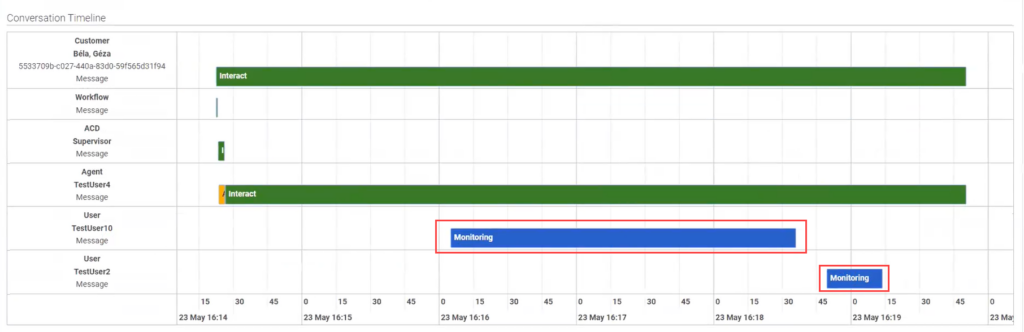
To read more about interaction details and interaction timeline, see View an interaction’s details and View an interaction’s timeline.
Take over an active messaging interaction
While monitoring an active messaging interaction, supervisors with the appropriate permissions can take over the conversation and continue directly with the customer.
Takeover is only available during live digital monitoring. Supervisors cannot initiate takeover from Analytics views, reports, or historical interaction views.
When a supervisor takes over a messaging interaction:
- Genesys Cloud removes the agent from the conversation.
- The supervisor becomes the active participant handling the customer interaction.
- The agent receives a notification that the supervisor has taken over the interaction.
- The agent completes wrap-up work if wrap-up is configured.
- The interaction transcript and analytics indicate that a takeover occurred.
The customer does not receive a direct notification that a takeover occurred. However, if the agent name is visible in the messaging experience, the customer may notice that the participant name changed.
Take over a monitored messaging interaction
- Open the interaction you want to monitor.
- Click Monitor Message.
- While monitoring the interaction, click Takeover.
- In the confirmation dialog box, confirm the takeover action.

After the takeover completes, Genesys Cloud removes the agent from the interaction and the supervisor continues the conversation directly with the customer.
[NEXT] Was this article helpful?
Get user feedback about articles.