Configure ACD messaging for X (Twitter) Direct Messaging
AI-generated summary
Genesys Cloud enables customer interactions through X (Twitter) Direct Messaging via ACD messaging functionality, supporting Genesys Cloud CX licenses (versions 2, 3, 4, or Digital variants) with appropriate messaging permissions. Configuration requires an X business account with direct messaging enabled for all users through Settings and Privacy settings, specifically by enabling "Allow message requests from everyone" under Direct Messages settings.
The setup process involves two primary components: X account configuration and ACD messaging configuration. ACD messaging configuration is completed through Admin > Message > Platforms, where users create a new integration via the X tile, assign a name, and select an integration size that determines daily message capacity. Three tiered capacity options are available: Small (1,000 messages/day), Medium (3,000 messages/day), or Large (9,000 messages/day), with Entry tier (200 messages/day) limited to one per organization. Pricing varies by integration size selected during configuration.
Optional configuration settings include content profile selection and platform configuration before authorizing the X account connection. The integration setup process requires X credential authentication and app authorization through the X login dialog. Users must ensure the correct authorized account is selected during authentication; if an incorrect account is active, users can log out via the account name link and restart the integration process. Account switching is supported through logout via x.com and restarting the integration setup process.
After X integration configuration is complete, message flows can be configured in Architect using inbound message flow functionality. The system features a 90-second retrieval delay for direct messages. Configuration instructions serve as general guidance and may be subject to third-party updates; consultation of X's official documentation is recommended for procedural compliance and to ensure the most current procedures are followed.
- Genesys Cloud CX 2, Genesys Cloud CX 3, Genesys Cloud CX 4, Genesys Cloud CX 2 Digital, Genesys Cloud CX 3 Digital, or Genesys Cloud CX 1 Digital Add-on II license.
- All permissions under Messaging > TwitterIntegration
- An X account set to allow direct messages from everyone.
Genesys Cloud ACD messaging provides a way for your customers to use X (Twitter) Direct Message to interact with agents who are using Genesys Cloud. To configure ACD messaging for X (Twitter), perform the following steps:
Before you can configure ACD messaging for X, you must have an X account for your business and it must be set to receive direct messages from everyone.
To set your X account to receive direct messages from everyone, perform the following steps:
- Log in to your X business account.
- Select More in the on the left side menu to access Settings and Privacy option.
- From the menu, select Settings and privacy.
- And then, select Privacy and safety.
- Under Privacy and Safety, click Direct Messages.
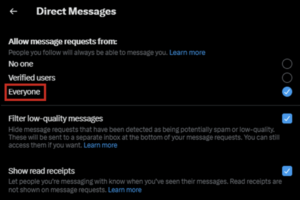
- Under Direct Messages, in the Allow message requests from field, select Everyone.
To configure ACD messaging, perform the following steps:
- Click Admin.
- Under Message, click Platforms.
- Click Menu > Digital and Telephony > Message > Platform Integrations.
- Click the Create New Integration button.
- Click the X tile.
- In the Name box, type a name that you want to assign to your integration.
- In the Integration Size section, select the integration size. You can choose any one of the following integration sizes:
- Entry – If you select this option, there is a cap of 200 outbound direct messages a day per X integration. You can select only one integration at entry level.
- Small – If you select this option, there is a cap of 1000 outbound direct messages a day per X integration.
- Medium – If you select this option, there is a cap of 3000 outbound direct messages a day per X integration.
- Large – If you select this option, there is a cap of 9000 outbound direct messages a day per X integration. Note: Select the appropriate size for your integration as the pricing differs based on the selection you make.
- (Optional) In the Supported Content Profile field, select the content profile.
- (Optional) In the Platform Config field, select the configuration.
- Click Save.
- The X login dialog box appears. Enter your credentials.
- Click Log In. Note: If there is an authorized account already available and it is the account that you want to use for integration, continue to the next step. If it’s not the account you want to authorize, click the account name, which will redirect to x.com and log out of the account. Navigate back to Genesys Cloud and start at step 1 to create the integration.
- Click Authorize app.
After you configure the X integration, you can configure message flows in Architect. For more information, see Inbound message flows overview.
Disclaimer: The third-party application configuration information in this article is provided as general instruction and is subject to change by the third party. Best practice recommends that you review the third-party’s official documentation to confirm that you follow the most recent process.
[NEXT] Was this article helpful?
Get user feedback about articles.